Up until this point, you could have gotten away with bad file management. You could store all of your files in the same folder, and put them all on your Desktop, it hasn’t mattered. However, if you want to use your function files, you are going to have to be cognizant of your current working directory and your path.
As an analogy, think of MATLAB as a mechanics garage and think of functions as different tools. MATLAB comes pre-loaded with a bunch of tools (sin(), length(), max(), etc) and already knows where they are located. When you make a new tool called impact_driver(), you can store it anywhere. Maybe you are storing your new impact_driver() in the shed out back (your My Documents folder). Maybe you threw it into the lake. MATLAB has no idea where to look for it. So when you tell MATLAB you want to use your new impact_driver() it does the logical thing, it looks where you are standing (your current working directory). So if you tell MATLAB, “I want to use my new impact_driver()”, and you are standing in your shed, MATLAB will check the shed for the tool. If it can’t find it in the shed, MATLAB will check the garage (this is called the path). If it can’t find it where you currently are (your current working directory) or the garage (the path) then it gives up. I don’t blame it! It isn’t a magician.
This is important to remember when you save a function and are trying to run it. If the function is not located in either the path (the garage in our analogy) or the current working directory, it will throw an error.
Before we start creating functions remember our mantra! Think, sketch, code, test, repeat! This will help us organize our thoughts and make sure that we are making the function correctly.
Imagine that you are working on a program that requires you to calculate the volume of a sphere several times. Recall: \(volume\;of\;sphere=\frac{4}{3\pi r^3}\) so you are constantly writing that formula over and over again.
This is a perfect candidate for a function! We can create a function that automatically calculates the volume and returns it. This will simplify our code! Now it will look like this:
Notice how it is much easier to read and understand. In the lower example, it is clear that the input is 2 for volume1 and 3 for volume2. Not only that, but it is easier to type and the user is less likely to have errors.
Think- What will the input variables be? Will your user expect your function to work with an array of radii? What about the output variables? What will the user expect to get back? The mathematics in this function isn’t super complicated but make sure that you understand how to program MATLAB to correctly calculate the volume from an array and scalar input.
Now that you understand the importance of the current working directory, navigate to a folder (or better yet create a new folder) to store your new function file. We are going to create a function called sphere_vol() that will take radius, r, as an input, and return the volume, V as an output.
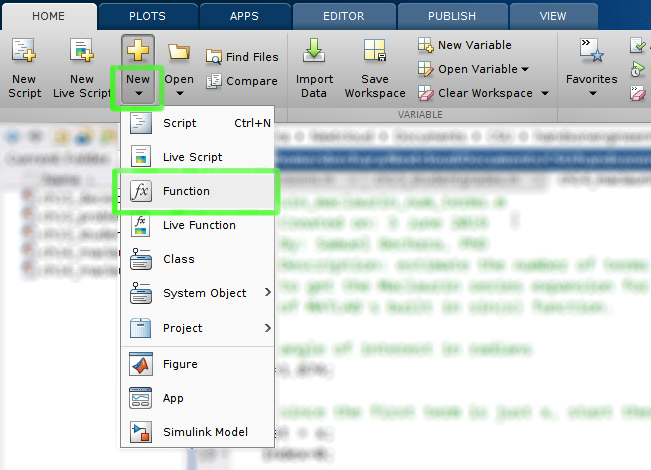
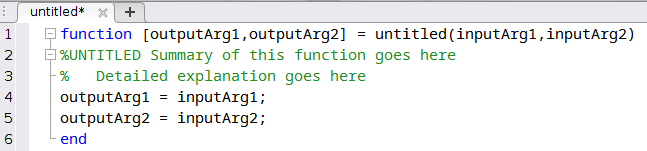
Once click the correct button, a new editor window should pop up that looks like figure 16.2.3 below. MATLAB creates a template function that we can then modify to fit our needs. The reality is there is no difference between a script file and a function except that a function must begin with the keyword function.
The very first thing to notice is that the function template is structured in the exact same way as you would use a function. For example, when we talked about the max() function above we did:
Notice how the very first word on the very first line is function. This must be true for MATLAB to understand this file as a function. You can not put anything above that word. Even a comment % preceding the word function will fool MATLAB.
After function you can see the two output variables, [outputArg1, outputArg2]. You list your output arguments in square brackets [] separated by a comma.
The function name comes after the = sign and precedes the parenthesis. In the default case, the function name is untitled(). I will mention this again, but the function name needs to be exactly the same as the filename.
Sketch- Remember our goal is to create a function that can calculate the volume of a sphere. Before you start changing things in MATLAB, grab a pen and a piece of paper and write out what you think the first line should be. Recall that our function name is going to be sphere_vol(). We are going to have an input variable that is a scalar radius or array of radii. We will have an output variable that is a scalar volume or an array of volumes.
Does yours look similar? Keep in mind that the variables volume and radii are what I chose. They could have been anything. You could still be 100% correct if you picked different variable names!
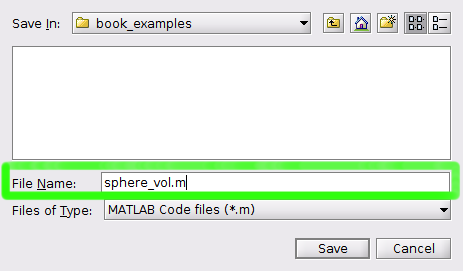
At this point go ahead and edit the function template according to my first line above (or even better, use your own variables) and then save your function. Click the save button in the MATLAB GUI. When the save dialogue box opens up, notice how it automatically fills in the function name in the “File Name” text edit box (figure 16.2.4 below). DO NOT CHANGE THE FILE NAME! If you change it, your function will not work. Don’t forget about the current working directory!
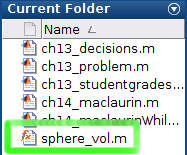
The last thing to notice is your “Current Folder” browser. Notice the icon looks different than a script file! It has a little \(f_x\) in the icon instead of the MATLAB logo. This is another little visual indicator when you are browsing your folders that it isn’t a script file, but is a function file.
Remember that helpful text that popped up when we typed in help max into the command window? We need to create that for our functions too. In our think and sketch phases, we have come up with an idea for how this program should work. Now let’s create help text so that when someone types in help sphere_vol into the command window, they get helpful hints for how to use our function.
When someone types in help function_name MATLAB returns all commented lines % below the initial function definition line. In the case of our template function, that is:
You can see this in action! Go ahead and type help sphere_vol in the command window. See the text? Well, that isn’t very helpful. So let’s replace it so that it is actually helpful. See figure 16.2.6 below for how I defined my help text.
There are a couple of good practices to notice. You can technically put whatever you want for your help text. However, good practices state that you should include:
The next line(s) should then include a more detailed description of the function. Its purpose, and how it works. In this case, our function is pretty straightforward but as you make more functions, they will likely get more complicated and require more descriptions.
When you type this help text in, save the file, and then try typing help sphere_vol into the command window again. Notice how you now get your useful help text! Neat huh?
Now that we have everything defined and sketched out, it is time to program the function’s functionality! To do so let’s erase the two outputArg... lines that came with the template and program in our function. Make sure not to delete the last line, the end keyword! All functions must start with the word function, and end with a line that just has end on it.
That is it! Notice that we had to use the .^ to account for the possibility that our user would input an array of radii. If the user just inputs a scalar value, the function will still work. At this point, we have completed the function. It should look similar (if you used your own variable names, those will be slightly different) to example 16.2.7 below.