Section 10.1 Script Files
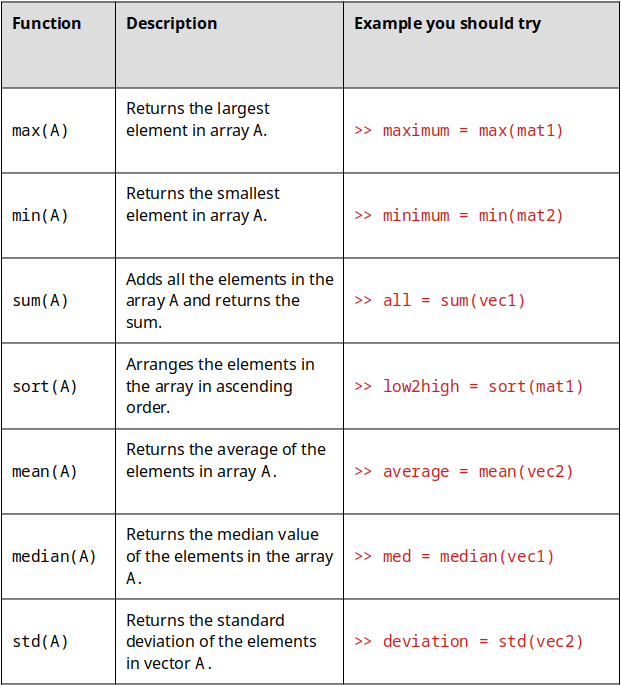
To work out our brain muscles, let’s create a script that calculates the average exam grade as in the example presented above. As we have learned, a script file is just a list of MATLAB commands to be executed in a specific order. So in a way, we already have the meat for our first script file. To start a new script, click the “New” button on the “Home” toolbar and then select “Script” (Figure 10.1.1, everything that you don’t need to worry about is blurred out).
Once you click
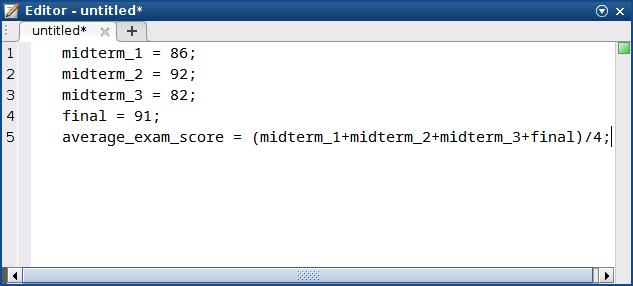
“New Script”, you should have a new window open titled “Editor” with a little pencil and paper icon in the top left corner. That is where we will write our script file. Go ahead and type in the commands we went over. When you are done, you should have something that looks like figure 10.1.2. Make sure that you typed all of the commands into the editor window correctly.
Saving Scripts
Remember, the whole point of having scripts is so that we can save them and run them whenever we want and change the variables as we please. Notice that in Figure 10.1.2 that currently the editor is displaying
“untitled*” in the window. This is mentioning to the user that the file currently does not have a name and the asterisks is indicating that the file is currently not saved. Hold your horses, don’t go saving that file yet! We need to make sure we know where we are saving it.
In Question 9.1.3 above the current directory being displayed is
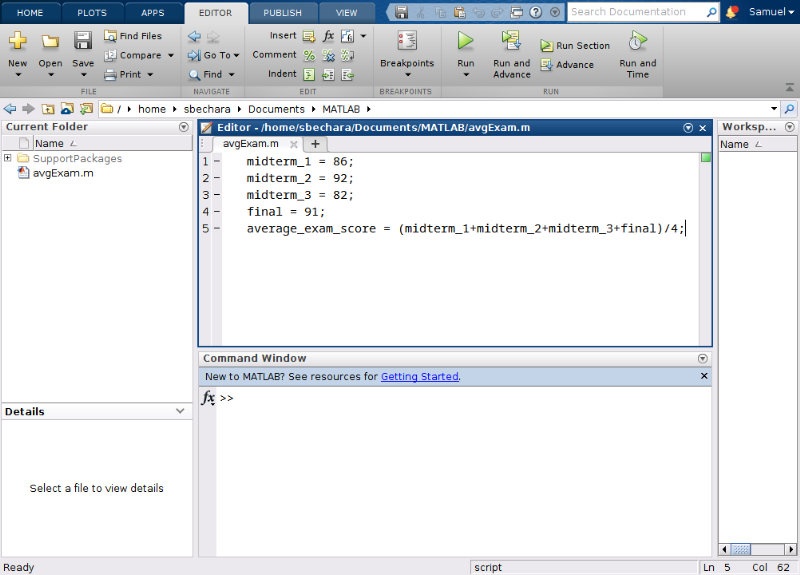
/home/sbechara/Documents/MATLAB. That seems like an easy place to remember for me. You need to decide where to store your file. If I were you, I would create a folder in my documents folder called “MATLAB Book Examples” or something like that. Then navigate to that folder in MATLAB (did you forget how? No worries, you can click here to jump to the chapter of the book where that was discussed).
Now that you know where you want to save your file, click the little
“Save” icon on the “Editor” tab. Notice that MATLAB automatically appends a .m to the file as the extension. I saved mine as avgExam.m. You should notice the file show up under the “Current Folder” portion of the workspace and notice that the asterisks are no longer listed next to the name (figure 10.1.4).
Running Your Script
Double-check that you have
avgExam.m in your “Current Folder”. We are ready to run our first script! There are actually two ways to run the script. The first way is to click the green “Run” button on the “Editor” banner. Go ahead and click it now!
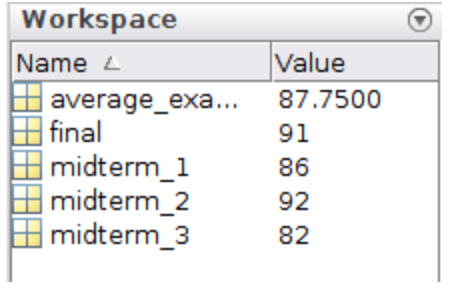
If you typed everything in correctly, the only thing that you should notice when the program is complete is that you now have several new variables in your workspace corresponding to your variables (specifically the
midterm_1, midterm_2, midterm_3, final, and average_exam_score variables).
Checkpoint 10.1.8 What is displayed in the command window?
The preceding question is actually the other way that you can run your
.m files. As long as the current working directory contains a .m file, you can simply type the name of the .m file into MATLAB (omitting the .m extension) and it will run the script!
Try It!
Remember, we need to work out your brain muscles to make them stronger and to ensure that you remember how to do this! Do not skip these steps!
-
Try playing around with the different exam scores, saving, and re-running your script.
-
Try navigating to a different folder. Then click the
"Run"button. What does MATLAB do? -
Try clicking
“Save As”and changing the file name. Try both methods you learned above to re-run the script.
Script Headers and Commenting
Commenting is a critical component of scripting because it allows us to understand what we did in the past so that we can work with scripts in the future. Do you remember the correct symbol for commenting in MATLAB? (If not you can click here to return to that chapter to review). Hint:
%.
It is a good habit to create headers for your MATLAB scripts that contain useful information about your script. It may seem obvious what you are working on now, but open up this script a few weeks, months, or years, in the future and you will have no idea what it is for! That is why headers are so important. You can use comments because MATLAB ignores commented lines of code. I suggest that your script header contains the following information:
-
The filename (redundant I know, but it helps in case something gets changed on accident)
-
Your name
-
The date the script was created
-
The date the script was last modified
-
A brief description of what the script does
In general, it is a good idea to comment on all of your script files so that you can follow your scripts in the future. Script headers plus comments play a huge role in helping future you understand what you were doing with a particular script. Remember, as soon as MATLAB sees
% it ignores everything after the % on the same line. That means you can have in-line or whole-line comments. It also turns it into a nice green color for the user to have a visual indication that the line is commented out.
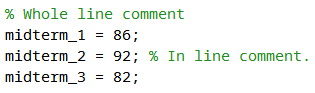
This is where the art of commenting comes into play. How much commenting is too much or too little commenting? There really isn’t a hard and fast rule with this. It depends. I suggest that you comment enough so that you understand what is happening in each chunk of code. What is a chunk of code? Again it depends. See figure 10.1.10 to see my script header and how I would comment on the
avgExam.m script we have been working on.
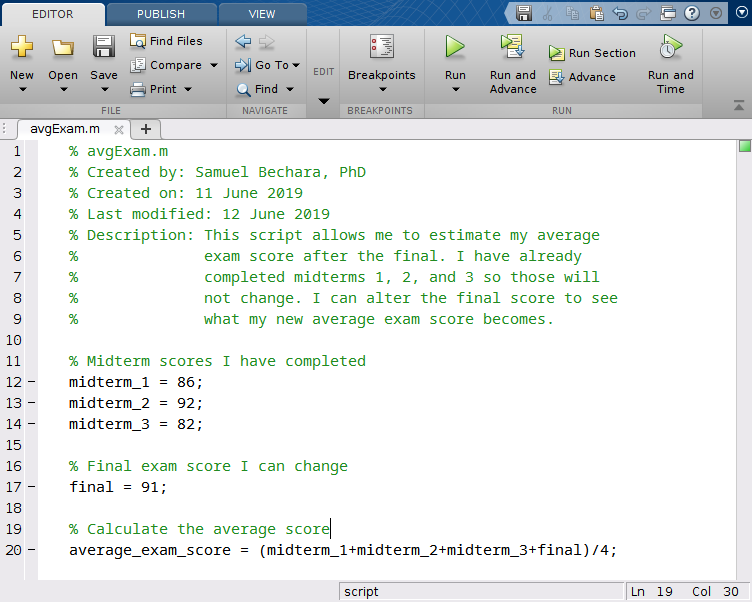
Looking at figure 10.1.10 above, you can see how the header helps the user see what the script does and how it is intended to work. Keep in mind there are no right or wrong answers when it comes to commenting. Depending on where you work, your company might have specific requirements about how much commenting and what headers should look like. The important thing, for now, is to make sure that from now on you are commenting on your script files and including some form of header so that you can understand what your scripts do in the future.
For now, you can save this script (we will use it in the next Chapter) and close it. For the rest of the chapter, we will just work out of the command window.

