Section 5.5 Built-In Functions
So far you have learned a good deal about what you need to know as an engineering Excel user. Knowing how to create formulas and use cell addressing to make quick calculations of tabulated data is significant. To expand on these concepts, it is important to introduce some built-in Excel functions.
Part of what makes Excel powerful are the built in functions. There are hundreds of them ranging from trigonometry, mathematics, statistics, and more.
The functions have very specific names that you must type in exactly to use and they take different numbers of input arguments.
The Parts of an Excel Function
Each excel function must be written in a specific but similar way. Just like typing in a formula, you start with the
= sign. Next, you type in the function name, at this point, Excel will often start showing you options and auto-correct suggestions. After the function name, you must include parentheses and the input arguments to the function inside the parenthesis. In its generic form an Excel function looks like this:
= function_name(input,arguments)
The input arguments in the function can refer to individual cells, or a range of cells, or might even be entirely optional. For example, Excel has a function
=pi() that takes no input arguments. That doesn’t mean that the parenthesis are optional though! All Excel functions must include parenthesis after the function name. For now, open your script you have been using to follow along and replace the cell that contains the approximation of \(\pi =\frac{22}{7}\) with =pi().
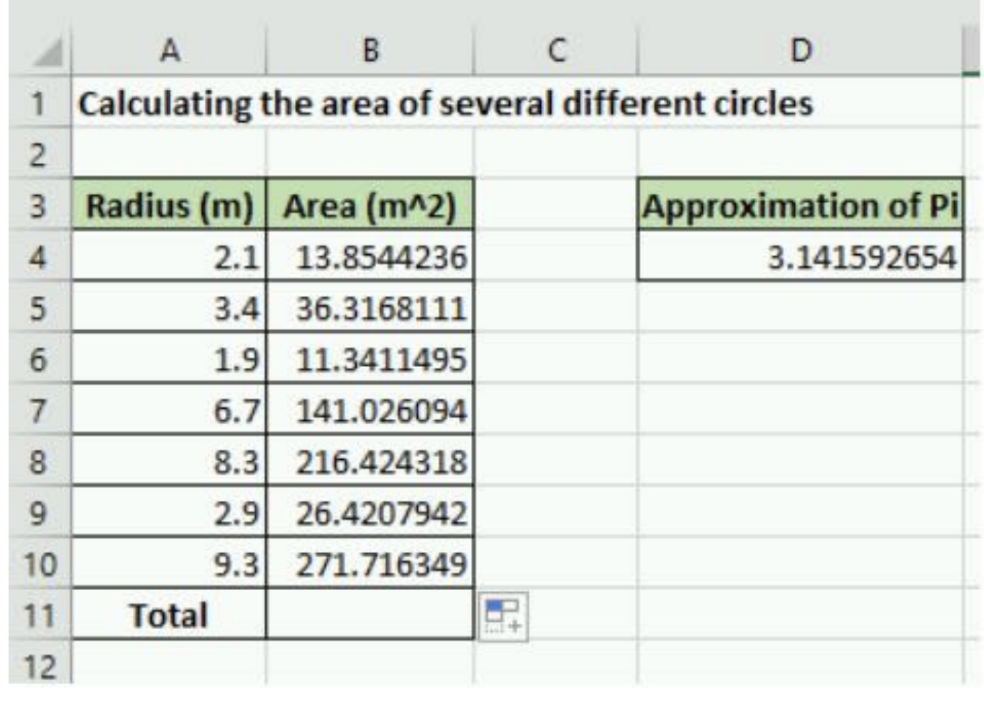
D4 to =pi() and add a total row.To illustrate a use of an Excel function that does require input arguments, let’s consider the case that we need to add all of our area calculations in column B. See figure 5.5.1 above for what your Excel spreadsheet should look like. As it would be extremely tedious to type in a formula that adds up all the areas, we can use the Excel function
sum() to add all of the cells in that range automatically!
To use the
sum() function click on cell B11 and type in the following:
= sum(B4:B10)
Notice that Excel automatically adds all of the areas in the column! Neat! You should also notice that when functions require a range of cells (such as
sum()) you can specify the cell range using a colon OR by clicking and dragging to select the range of cells of interest. You can see both ways of adding a range of cells in Figure 5.5.2.
If you understand how to use the
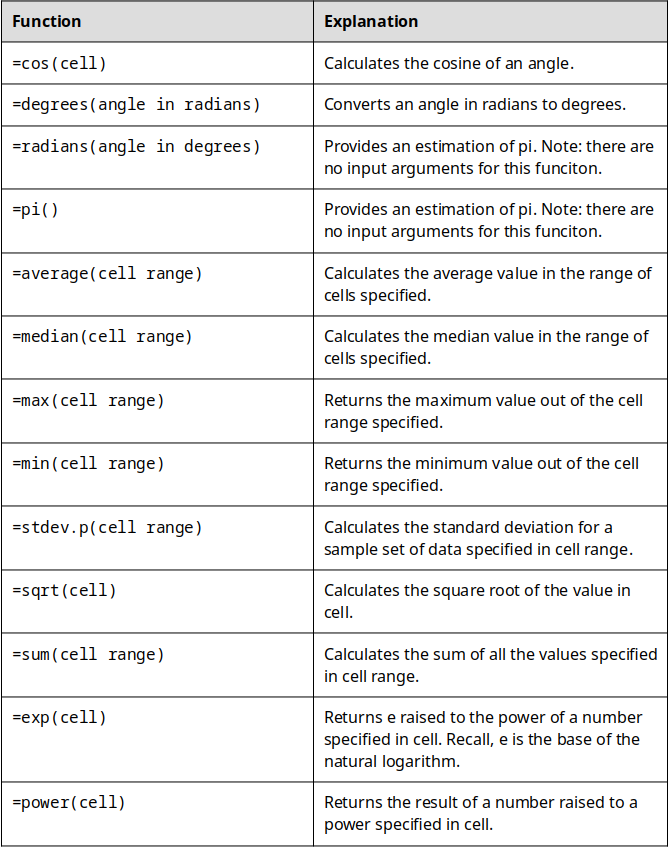
sum() function you are in great shape! Almost all Excel functions work in an identical way. Here is a list of functions that you should be familiar with. You do not have to memorize them, but you should know what they are and how to use them.
Let’s Practice
For your brain workout, I suggest looking at Figure 5.5.3 below and coming up with your own practice problems for each of them. That way you will remember how to use them in the future! For example, add some fake data to 5 cells and use the
average() function to calculate the average. You can also find the standard deviation of those numbers using the stdev.p() or stdev.s() function; the distinction of .p or .s is a statistics one and beyond the scope of this textbook. You get the idea.