Example 10.6.1 : with Vector Practice.
Here is an interactive code box that functions identically to the MATLAB command window.
: Operator
: operator with addressing for arrays to do some really cool stuff. The key thing to remember is that the : operator defaults to a spacing of 1! That means you can use the : operator to address a range of elements in a vector or a matrix.
: with vectors
: operator to address a range of elements from a vector. The most general use case is as follows:
range_from_vector = vector_name(m:n)
vector_name and store them in a new vector called range_from_vector. It’s that easy!
v_man to our workspace as follows:
v_man = [22 61 45 51 68 98 11 90 17]
: operator to address different ranges of elements from the vector v_man. Let’s say for this application we want to create a new variable called two_to_five and we want to store the 2nd through the 5th elements of vector v_man.
two_to_five = v_man(2:5)
: with Vector Practice.
: with Matricies
: operator to address ranges of elements within a matrix. However, the logic is the exact same as with vector addressing. Again, the key is to remember the row/column law of MATLAB.
: s operator on matrices to pull out a range of values. Can you figure out at least a couple of ways to make it work?
A. It can have any number of rows and columns.
A.
A(:,n)
A.
A(:,m:n)
A.
A(m:n,:)
A.
A(m:n,y:z)
: with Matrix Practice.
clear and clc. For example, look at a script that we will work on in Chapter 13 below in figure 10.6.3.
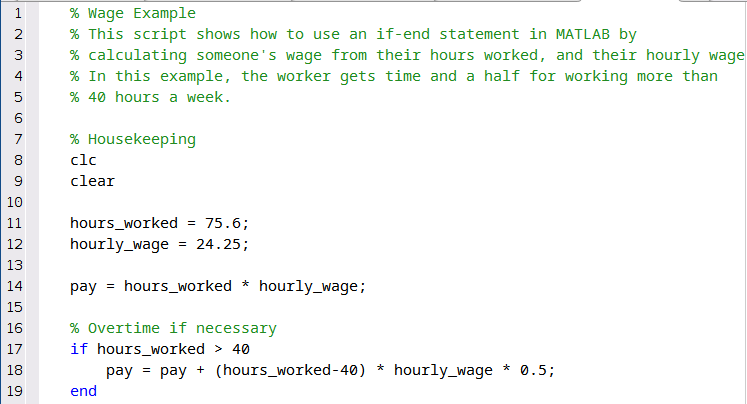
clc and then a clear command. This is good practice to ensure that your scripts will work on a fresh start of MATLAB and do not rely on a variable that is currently in the workspace. You are not required to start your scripts this way, but it is good practice.

