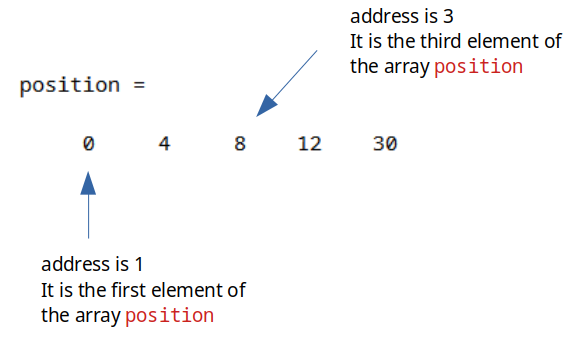
You might already be able to see why arrays are powerful tools to utilize in MATLAB. For example, we could have arrays that correspond to the position of a moving object with respect to time. Let’s pretend that we have the following position and time data. Go ahead and define the following variables in your workspace by typing them into the command window.
You might recall from physics that we can calculate the average velocity between two points in time using this data. We can see that the object starts at time 0 at position 0. It then moves in the positive direction 4 units in 5 time units. We could calculate the average velocity of the object for any time period by:
In this example, our array position has 5 elements in it corresponding to the numbers 0, 4, 8, 12, and 30. In this example, the number 8 has an address of 3. It is the third element in the array position. To access this number, we can call the array position and specify that we want the third element out of it.
You should notice that MATLAB stores the number 8 into the ans variable. We have accessed the number 8 from the position array! It may not be obvious now (some of you may be asking, why not just type in the number 8?) but believe me when I say this is a fundamental skill to have in MATLAB and is critical to your future success!
What happens when you type that in? You create a new variable called anyone_home and it stores the number 16 in it. Why 16? Because position(4) accesses the 4th element in the array position!
As you can see, addressing values inside of vectors is as easy as typing in the vector name, followed by parenthesis, and then typing in the number that corresponds to its position!
Brain workout time. Try creating different size row and column vectors with random numbers and use array addressing to make sure that you understand how to pull out the correct values. Array addressing on row and column vectors works the exact same way. The addresses start at 1 and go from there.
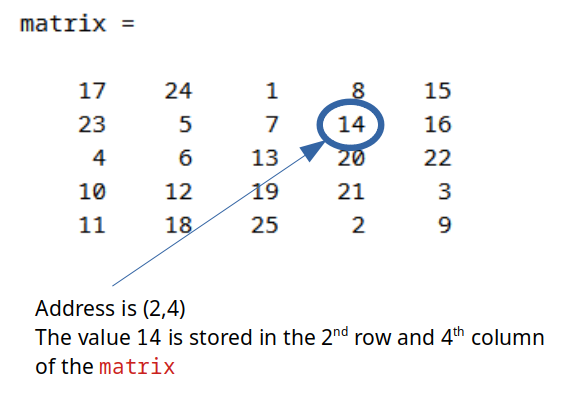
Matrix addressing works the same way as vector addressing, the only difference is that with matrices we need to specify both the row and the column of the value of interest. Take a look at figure 10.4.5 for an example.
Go ahead and enter the matrix in figure 10.4.5 into your workspace. It is good practice to remember how to enter all of the values. When you are done double-check that your matrix is the same as mine.
Now that you have done that, let’s try accessing the value 18. We can see that it is in the 5th row and the 2nd column of the matrix. That means, to get the number 18 we can type in:
And now you know array addressing for both matrices and vectors! The main trick to remember is that when we are talking about array addressing (and honestly pretty much everything dealing with a matrix in MATLAB) it always goes ROWS then COLUMNS.
You know the drill. Brain workout time. I suggest that you make a random 4x5 matrix on a sheet of paper. Make sure that you can successfully type that matrix into MATLAB. Next, use array addressing to make sure that you can pull out numbers successfully. The nice thing about not using a square matrix is, that it will show you if you really understand the row/column law of MATLAB.