It is very important to organize your files and folders when working with MATLAB. One of the most common problems students have when starting to learn MATLAB is improper file management. They start storing all of their script files, functions, and algorithms inside the same folder. While this works for 2 or 3 files when you have 200 or 300 in the same folder, things get messy. Today is the day to get your digital life organized! I suggest creating a new folder in your documents folder that is named after the name of your course. So if you are taking MECH103: Intro to Mechanical Engineering, name your folder mech103 (or something else that makes sense and makes you happy). Then add folders into that folder as appropriate. For example, it might be a good idea to create a folder called assignments that you use to store your assignments into, etc. It is assumed that you understand how and where to store things on a computer.
You do not need to be an IT Professional to understand MATLAB. But a critical skill is understanding file structures and directories. For example, you should know that the “path” to the folder shown in Figure 9.4.2 above is C:\Users\sbechara\Documents\mech103. If you need a quick refresher on Windows File Structures, try watching the following video to catch up. I personally use GNU/Linux operating systems so when you see screenshots of MATLAB you may notice that the path is a little different (UNIX-like systems such as macOS and Linux use / instead of \ and do not have drive letters like C:\ or D:\).
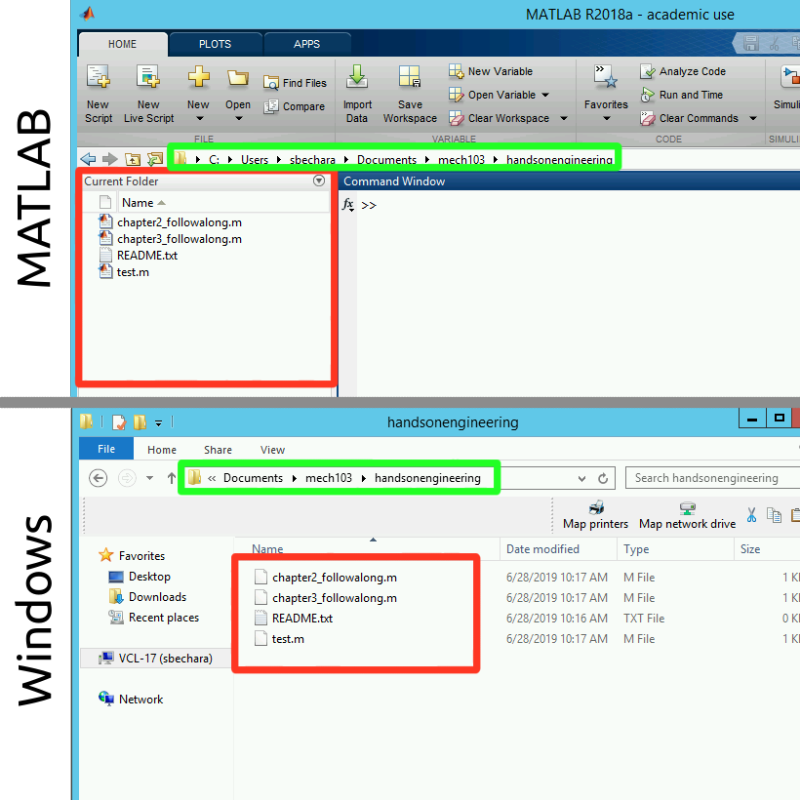
To illustrate the similarities between MATLAB’s current folder browser and the current folder path to Windows Explorer, see figure 9.4.4 below. In figure 9.4.4, the green boxes indicate the folder path (also sometimes called the current working directory) (note: in figure 9.4.4 Windows truncated and doesn’t show the full path, to see the full path click the << to the left of Documents) which in this case is C:\Users\sbechara\Documents\mech103\handsonengineering. The red boxes indicate the current folder contents, since the folder is the same we would expect both the Windows File Explorer and MATLAB File Explorer to contain the same files, and they do! The only difference is that MATLAB puts different cute icons to help you quickly understand what your files are. Isn’t that nice?
Figure9.4.4.Showing the similarities between MATLAB and Windows File Explorer. The green box indicates the folder path and the red box indicates the folder contents.
The next thing to learn is how to navigate your computer’s file system inside MATLAB. You do it the same way that you navigate Windows File Explorer in Windows or Finder in macOS. The problem here is that there are a ton of options. I encourage you to take a small brain workout and try each of these in MATLAB on your own.
I created a video showing me navigating a file system. See Figure 9.4.5 below for an example. Again, do not let this be a substitute for actually trying it on your own!
So the main thing to remember is that the “Current Folder” window in the MATLAB workspace is showing the files in the folder MATLAB is currently working out of. The way to navigate files and folders within MATLAB should be familiar to any Windows, macOS, or Linux user. The keys are to be able to know where you are and what is in the folder you are currently in.
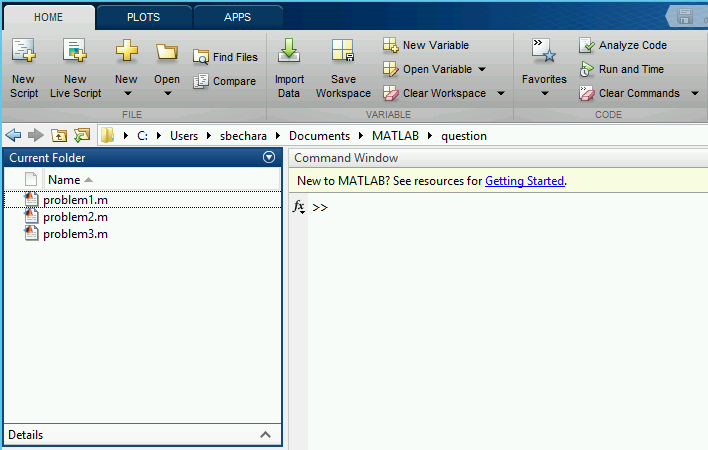
Look at the MATLAB screenshot taken on a Windows computer. What is the user’s current path (also called the current working directory) based on this image?