Section 5.3 Cell Addressing
The most basic use case for Excel is to simply use it to organize information into cells.
The cell is the basic storage unit of the spreadsheet. Cells are the little boxes you see in Figure 4.4 and Figure 4.6. You can select any of the cells, and begin typing in numbers, letters, or any combination of the two.
Cells are identified by their column (which are identified by letters) and their row (which are identified by sequentially increasing numbers). The combination of the column letter and the row number is called their address.

The analogy of a home address is particularly apt here. Just like your home address is likely identified by a number and name (e.g. 1374 Mulberry Street), the home of each cell in a spreadsheet is identified by a letter and number.
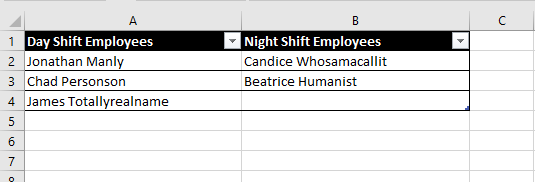
For example, in Figure 5.3.2 below, the cell
A3 contains the text Chad Personson. The cell B1 contains the text Night Shift Employees. The cell B4 is currently empty. Etc.
Excel also gives you some advanced formatting tools to make things look nice. For example, you could use it to keep track of employees working different shifts (again, Figure 5.3.2 ). In this example, I used the formatting tools (and specifically the “Format as Table” option under the style tab) .
The main formatting tools you need to know about are located on the “Home” tab on the main tool banner. The two most important are inside the “Font” box (this is highlighted in red Figure 5.3.3) and inside the “Alignment” box on the same tab (highlighted in blue in Figure 5.3.3).

Try It!
For now, don’t worry about being able to replicate Figure 5.3.2 exactly. Instead, take a second to open up Microsoft Excel and play around with typing text into cells, formatting the text, and playing around with the “Font” and “Alignment” options. If you are already familiar with how to use excel, it still is useful to play around a little bit, click on buttons you haven’t before, etc. Do not skip this brain workout! After this, it will be assumed you understand how all these buttons and formatting options work!

