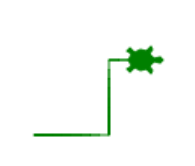
In this lesson, we will explore algorithms using sequential steps and flowcharts, and start coding in Python with print statements and Turtle code to draw shapes like below.
Subsection1.5.1Sequencing in Written Steps and Flowcharts
Algorithms are step by step instructions for solving a problem or completing a task. Before writing code, programmers often design algorithms to plan out the steps needed to solve a problem. Algorithms are used in many areas of life, not just in computer science. For example, a recipe is an algorithm for cooking a meal. A set of directions to a friend’s house is an algorithm for getting there.
Watch the following video of how instructions to make a peanut butter and jelly sandwich can go horribly wrong if the instructions are not precise enough!
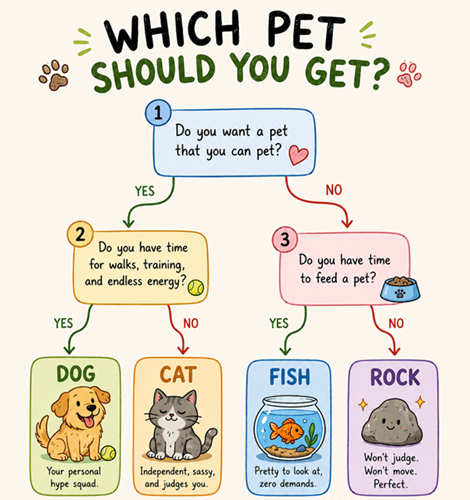
Algorithms can be written as text in any language or in pseudocode which is a way to describe precise coding steps using a language like English or using flowcharts. Here’s an example of a flowchart for choosing a pet:
Activity1.5.2POGIL Group Activity: Flowchart for Clothes Based on Weather.
Using https://app.diagrams.net/ or on paper, create a flowchart to help someone decide what clothes to wear based on the weather. Be sure to include yes/no questions and different paths for at least 4 different outcomes.
This can be done as a POGIL group activity. Follow the directions in this flowchart worksheet, to complete it as a POGIL. Make a copy and share it with your group members.
An algorithm is a set of instructions arranged in a sequential order. This order is called sequencing where the steps are carried out top-down line by line in order. The activity below demonstrates why the steps in an algorithm need to be in the correct order. Arrange the steps for sending a text message into the correct order. !
The print() function is used to display output to the screen in Python. Inside the parenthesis of the function, you can put in any message in quotes to be printed out, for example:
Try running this code in the exercise below. In Python, every command must be placed on its own line and start lined up at the same position (with no extra spaces on the left).
Drag or click on the blocks you need to move them from the top section into the yellow area to create a print statement that will print “Hi!”. There are extra blocks that you don’t need.
In this e-book, you can write Python code right in the Active Code exercises. When you click on run, the code is executed or run by the computer, which means the computer follows the algorithm instructions in the code.
The IDE (Integrated Development Environment) in this e-book is in the Active Code exercise windows, but you could copy the code into a text editor or IDE like VSCode that can be downloaded to your computer and run.
Now let’s try it in Python code. Python executes each line of code in order, so if the lines are out of order, the joke will not make sense when it is printed out. Put them in order by moving the lines of code, and then run it again to see the joke printed out correctly!
The lines of this knock-knock joke are out of order. Run to see what it prints out! Highlight and drag or cut and paste with (ctrl-x and ctrl-v) the print statements to put them in order, so the joke makes sense, and then run again.
Syntax errors are bugs or mistakes in the way the code is written. For example, the following code has a syntax error because the quotes and parenthesis are not closed. Try running the code and see what happens. Try fixing the errors to debug the code.
Python has a Turtle library where turtle objects can move around on the screen and draw pictures. We can import the library and set up the drawing space and the turtle with the following code where # indicates a comment that is not executed but explains the code.
import turtle               # use the turtle library
yertle = turtle.Turtle()    # create a turtle named yertle
yertle.shape("turtle")      # make yertle look like a turtle (default is an arrow)
We can set up a Turtle object like yertle that can be used to call functions to move the turtle around the screen. For example, the following code will move the turtle forward 100 pixels, turn it left 90 degrees, and move it forward 100 pixels again. The amount of movement or turning is put in parentheses after the function name.
Try running the code to see how the turtle moves. You can change the numbers in the parentheses to move or turn different amounts. You can also use other functions like right() to turn right, backward() to move backward. Note that the turtle always starts facing to the right and moves forward whichever way it is facing.
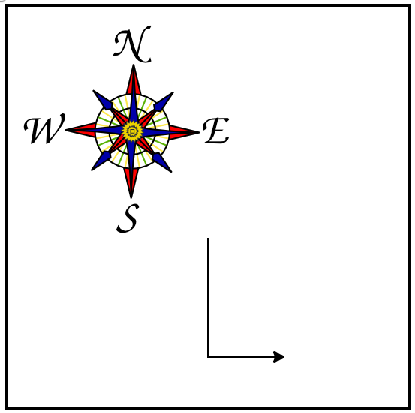
The following program uses a turtle to draw a capital L as shown below, but the lines are mixed up. The turtle should turn to face south, draw a line that is 150 pixels long, then turn to face east, and draw a line that is 75 pixels long. We have added a compass to the picture to indicate the directions north, south, west, and east. Drag the needed blocks of statements from the left column to the right column and put them in the right order. There may be additional blocks that are not needed in a correct solution. Then click on Check to see if you are right. It will tell you if any of the lines are in the wrong order or are the wrong blocks.
Tracing code means following the code or algorithm step by step. Pretend that you are the computer and trace through the code below line by line to figure out what the turtle will draw.
The xcor() turtle command will print out the current x-coordinate of the turtle on the screen. The Python turtle starts at the default coordinates (0,0) at the center of the screen. The x-coordinate increases as the turtle moves forward to the right and decreases as it moves to the left. Try running the following program that uses print statements to trace the current location of the turtle.
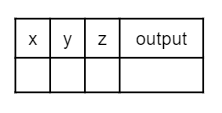
Trace tables can be used to track the values as they change throughout a program. To trace through code, write down a variable in each column or row in a table and keep track of its value throughout the program. Some trace tables also keep track of the output like below.
Draw something interesting with the turtle. You could draw a flower, a house for the turtle, a smiley face, or anything you want. The code below also shows how to change colors, fill in colors, lift up the pen, and draw dots. Check out all the Turtle Colors that you can use.
Review the vocabulary in this lesson. Drag the vocabulary term from the left and drop it on its correct definition on the right. Click the "Check Me" button to see if you are correct.