In this lesson, you will create the classic Mole Mash or Whack-a-Mole game in App Inventor, but with socially userful themes. First, you will follow a tutorial for the LightsOff app. where you click on light bulbs that pop up at random locations to turn them off to save electricity. After the tutorial, you will create your own version of the game with a theme of your choice.
describe the functionality of an app using key vocabulary such as event, timer, and sprite, out loud and in writing, with the support of vocabulary notes from previous lessons
Subsection2.16.1Tutorial: Creating the Lights Off App
To get started, open App Inventor with the LightsOff Template in a separate tab. Rename the project to LightsOff or something similar. If the template does not open, download the .aia file, go to App Inventor and do File/Import and import in the downloaded .aia file.
In pairs or groups, use Design Thinking to come up with ideas for a new version of the Lights Off app. Use a socially useful theme for your app, but you can change the images, sounds, and rules of the game. Think about themes in health, nutrition, safety, the environment, etc. Think about "good" and "bad" sprites that users could click or avoid.
Prototype: Draw a simple sketch of your app’s main screen and one other screen. Label some features that support your program requirements. You can use Wireframe.cc or this printout.
Empathize: Revisit users of the app. Is the socially useful activity focused on users of a certain age, users doing certain activities, or other specific users? Imagine showing your paper prototype to some possible user. They want the app to be more game-like, with a score display.
Define: Refine the problem or socially useful activity your app will address. Do you need to change the images used in the app? What do you think the user means by adding a score to the app? What would you get points for?
Ideate: Brainstorm ideas for new images for the app. Use Google Image search to find a background image and sprite images and download these. Remember many images are copyrighted so try to use the Tools in Google Image Search to find images “Labeled for noncommercial reuse”. Brainstorm ideas for scoring. Is there one sprite or multiple sprites worth different scores? Do you want good and bad sprites that both increment and decrement the score?
Prototype: Upload the new background and sprite images into the media area for App Inventor. Change the Canvas and Sprites to use the new images. How will you add scoring to the app? Where will the score be displayed? Use what you learned in the Paint Pot app about incrementing a variable to implement the score feature.
Test: Run your app to test it. How does the new background and sprite images look? The best sprites have a transparent background, so add “transparent” to your image search to find these. With the new images, when you click on a sprite does the sound still play? Does scoring work? What would be appropriate test cases for the score?
Subsection2.16.4Iteration 3: App Inventor If Blocks to Test Scores
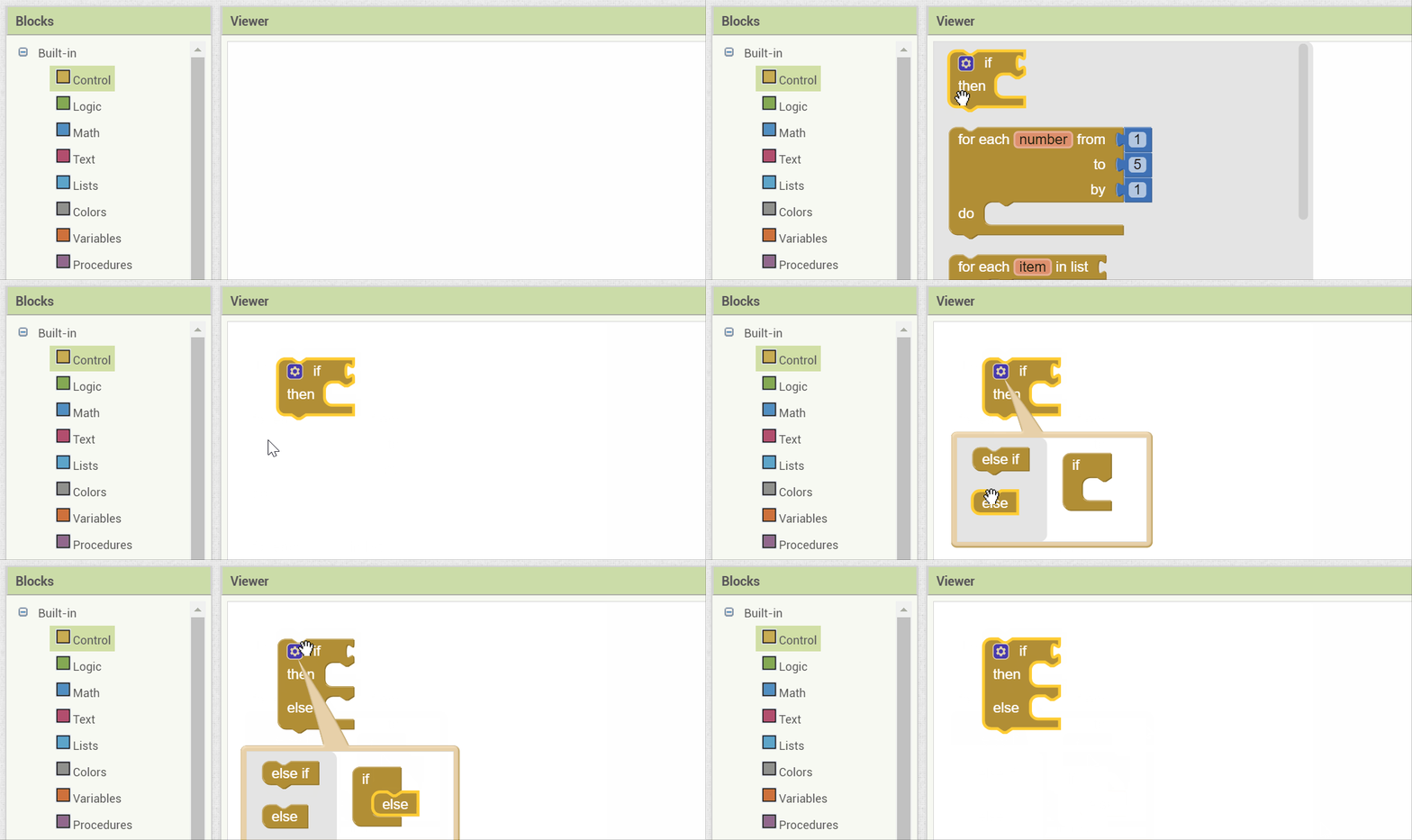
The if block in MIT App Inventor can be used to choose between different actions. If blocks are in the Control drawer of the block editor. This block has a blue mutator button where we can drag in an else block to make the block into an If/Else block which will allow us to choose between 2 actions (pause or play) depending on if the speech is already playing.
Define: Stopping the game when the user reaches the winning score should include stopping the ImageSprite from jumping around. What do you want the app to do when the user reaches the winning score? What should the reset button do?
Ideate:Brainstorm ways to implement the winning score. Remember you can use an if-block to only run code blocks under specific conditions. What options do you have for stopping the game on a winning score and starting it back up with the reset button? Do you need any new variables? Hint, the Clock component has a Timer Enabled property that can be set to true or false in the program to start and stop the action.
Prototype: Implement the winning score and reset button. Then, add one or more of your own enhancements or variations for this app. Here are some ideas:
Use a Notifier component to pop up and congratulate the player.
Implement keeping track of the number of misses -- i.e., the number of times the player failed to touch the ImageSprite -- and factor this into your scoring algorithm.
Challenge:Add another sprite or two. Ask the player to distinguish between "good" and "bad" sprites. For example, if your app had a nutrition theme, perhaps one image could be a picture of a healthy food item and the other a not-so-healthy item. Perhaps the player’s score decreases if they touch the "bad" choice.
Challenge:Change the speed of the sprite when the player reaches a certain score. (Hint: Recall that in this app, the sprite’s speed is controlled by the Clock timer.)
Test: What would be appropriate test cases for the winning score and the reset buttons? What would be good inputs and expected outputs to test? Share the app with friends or the class for user-testing.
Describe an error that you encountered while you were creating the app, and how you fixed your code to remove the bug. How did you test the app to make sure it was working correctly?
Describe a selection statement that you used in your app. What was the condition and what happened when the condition was true or false? How did you test both branches of the selection statement to make sure it was working correctly?