1.
As you saw in Section 3.2 Creating a Feature Branch, the
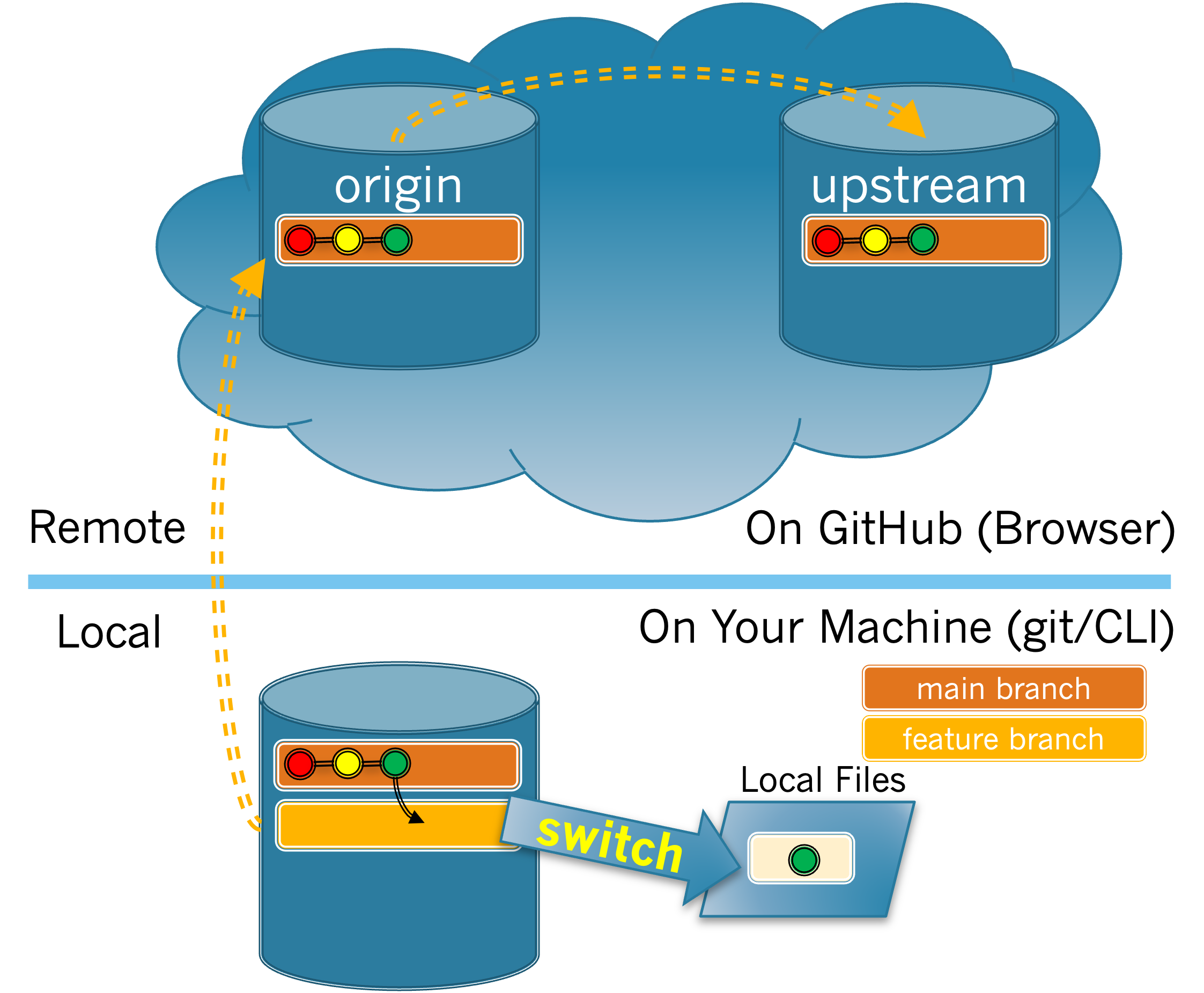
git branch <name> command creates a branch (among other uses), but it does not change your active branch. The git switch <name> command switches (i.e. changes) the active branch.
(a)
Type
git switch <name> to change your active branch to the new feature branch that you created in the previous section. What output is produced?
-
Switched to branch ’<name>’
-
Correct!
-
Switched to branch ’main’
-
You were on
mainprior to switching branches. -
error: Your local changes to the following files would be overwritten by checkout: ...Aborting
-
You should not have made any changes so far.
-
fatal: invlalid reference: <name>
-
You probably typed the branch name incorrectly. Run
git branchagain to see the name of the branch you created.
Hint.
Make sure you don’t include < > in your
git switch <name> command.
(b)
Which of the following commands could be used to confirm that your feature branch is now the active branch?
-
git branch -
git status -
git log -
git branch <name>
Hint.
There are two commands that will provide information about the active branch.
(c)
Which of the following commands could be used to make
main the active branch?
-
git switch main -
Correct!
-
git branch main -
This will try to create a new branch named
main. -
git branch -
git branchwill show all the branches -
git status -
git statuswill show the active branch and information about changes
Hint.
Refer back to how you made your feature branch the active branch.

