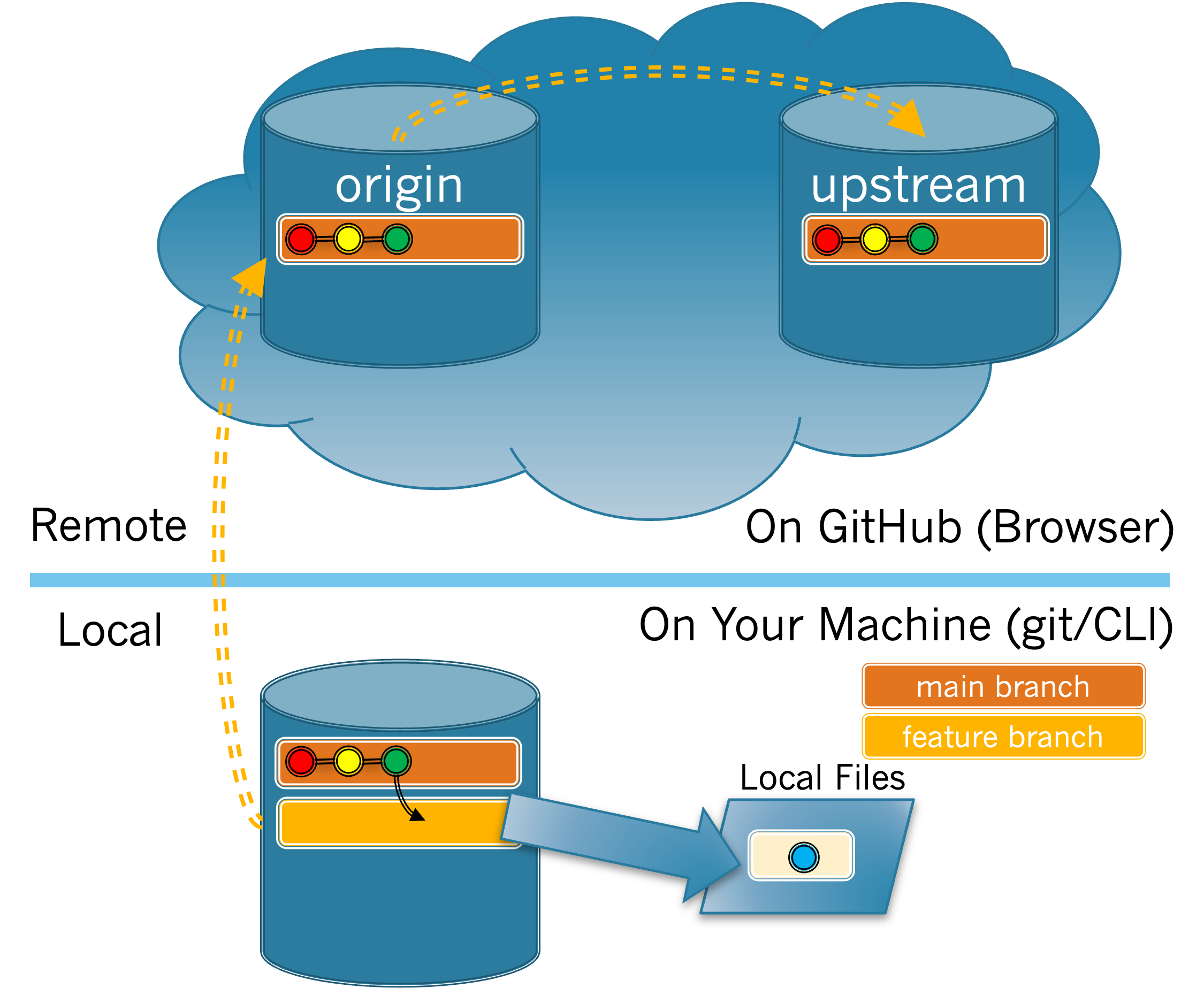
In the last two sections you created a feature branch and switched to that branch. In this section you will edit your local files to fix the issue that you claimed in the issue tracker. Confirm you are on your feature branch now.
In which file will you be making changes to address your issue? Hint: Look at the text of your issue in the issue tracker. Be careful to use the same capitalization as given in the issue.
Find the file in the Explorer pane to the left. This should show you the list of all the files and folders in the project. If you do not see the list of files and folders, click on the icon that looks like one sheet of paper on top of another.
Figure 3.4.1 illustrates the current situation where your Local Files have been modified. In Figure 3.3.1 the Local Files in your feature branch were drawn in green. This reflected that they were, at that time, an exact copy of the last commit on the main branch, which was also drawn in green. Here Local Files are drawn in blue to indicate that they have been changed as compared to the final commit in the main branch, which is still green.
If you see the message "nothing to commit, working tree clean", it means that your edits in the previous exercise were not saved. Go back and save your edits and then issue the git status command again before answering the questions below.
The git diff command provides another way to examine or confirm the changes you have been making. Note diff is just short for difference, and is called this because it is used to show differences. By default the git diff command will show you any changes that have been made to your local files that have not yet been staged. Run the git diff command now.