
Section 6.5 Grading
Subsection 6.5.1 Grade Book
To see the Grade Book, go to the Instructor Dashboard and click on Grade Book.
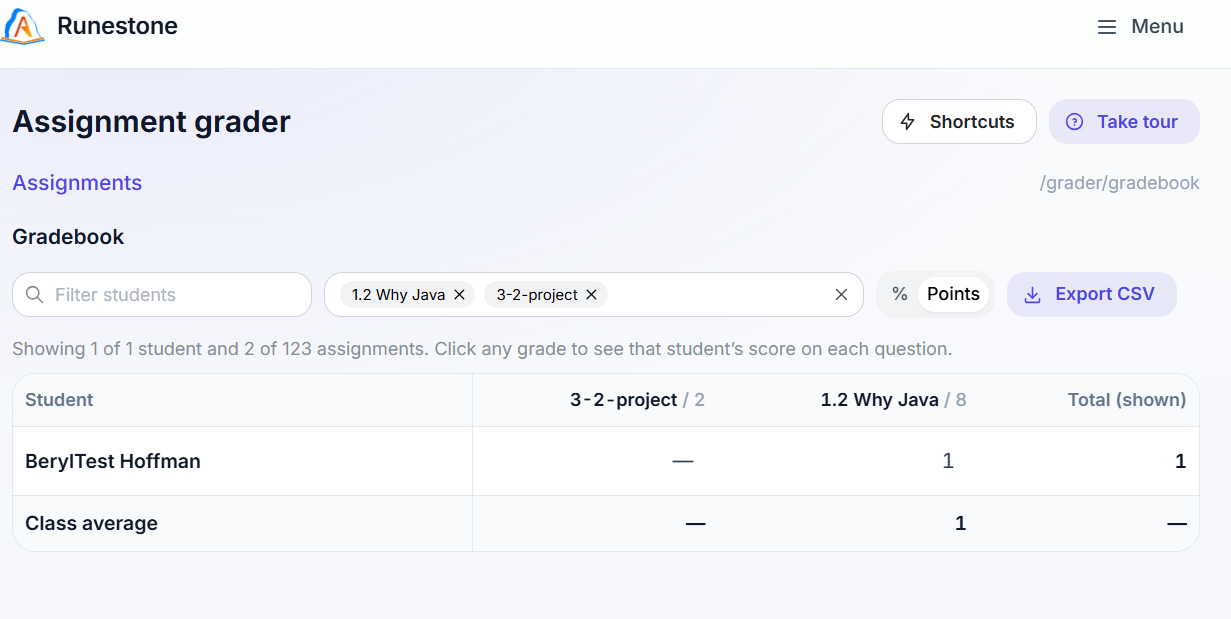
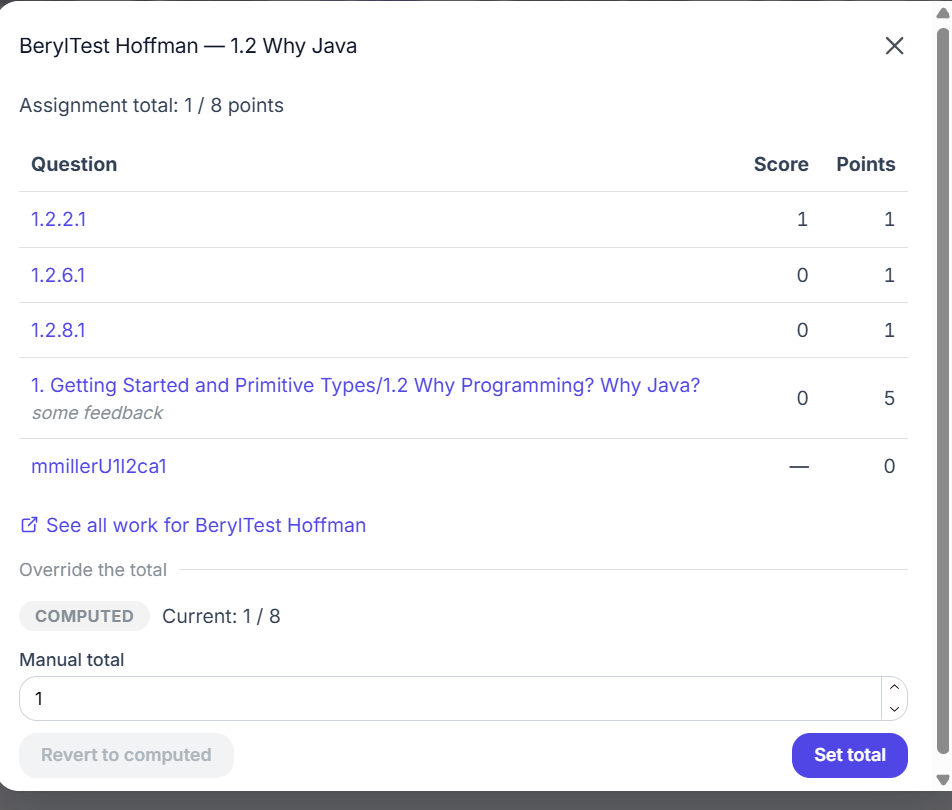
The gradebook allows filtering by students or assignments. If you click on a student’s grade, you can drill down to see their performance on each exercise and override the grade total. You can click on each exercise to open them in the grader.
Many assignments can be automatically graded, with the grades automatically appearing in the gradebook. For exercises in an assignment to be autograded, the assignment must be visible and completed before the deadline, and the exercises must be the type of exercises that support autograding. For example, the book active code exercises in the ebooks CSAwesome and CSAwesome2 all have unit tests that support autograding, but the community-contributed exercises and exercises from other books might not have unit tests. When you add an active code exercise to an assignment, you can tell if it has autograding tests if it comes up as "Pct Correct" in the Autograde colum and presents the autograding test results when run. Otherwise, it can be added as "interaction" only without grading for correctness or for "manual" grading. Short answer questions can be autograded for interaction, but require manual grading for content.
For assignments that are not autograded, you can manually grade the students’ work. You can also manually grade any assignment, even if it is autograded, to override the automatic grading or for late work after the deadline.
Subsection 6.5.2 Grader
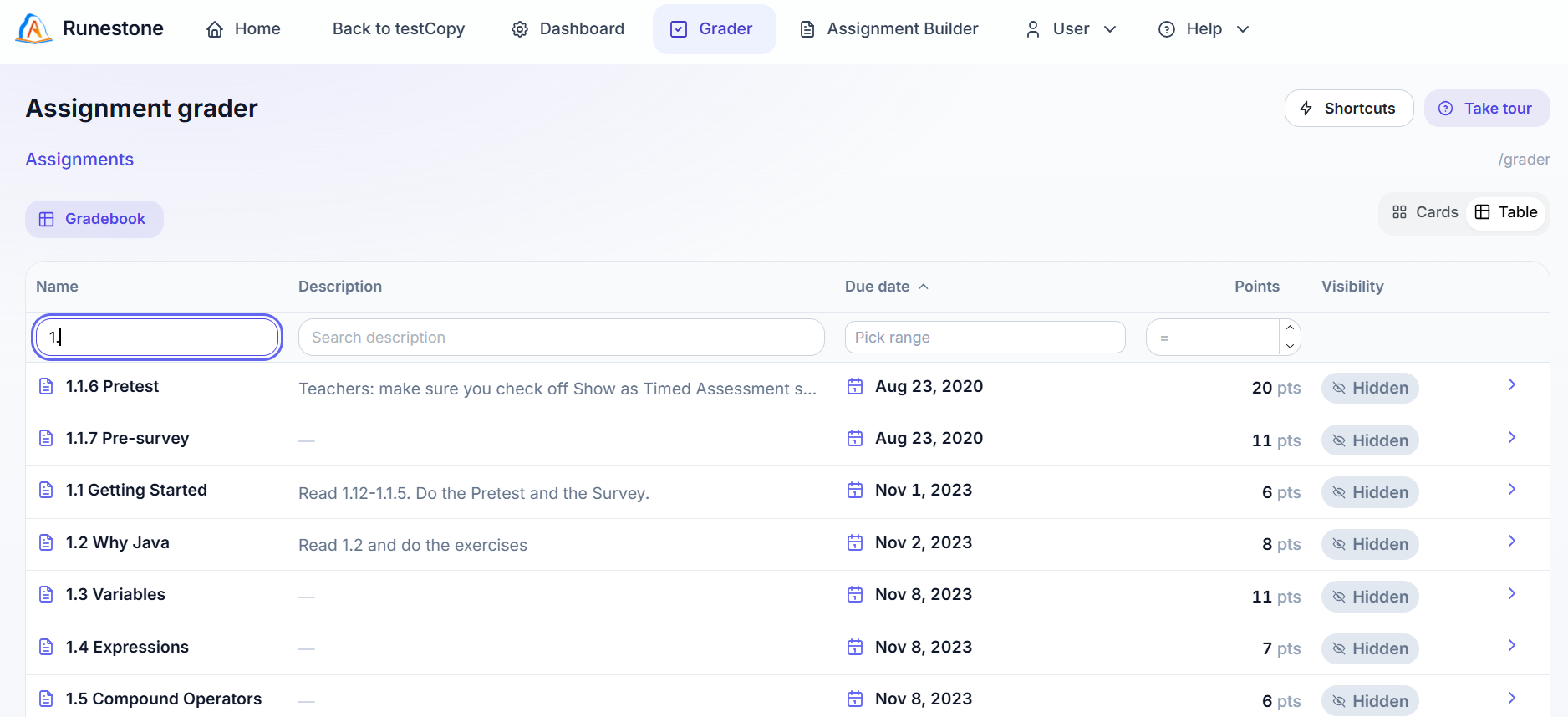
To grade or examine student work, click on the Grader button in the Instructor’s Dashboard. You will see your assignments in the Cards View. You can switch to the Table View by clicking on the Table View button at the top right, and then you can search for an assignment by name or description. You can also sort the assignments by clicking on the column headers.
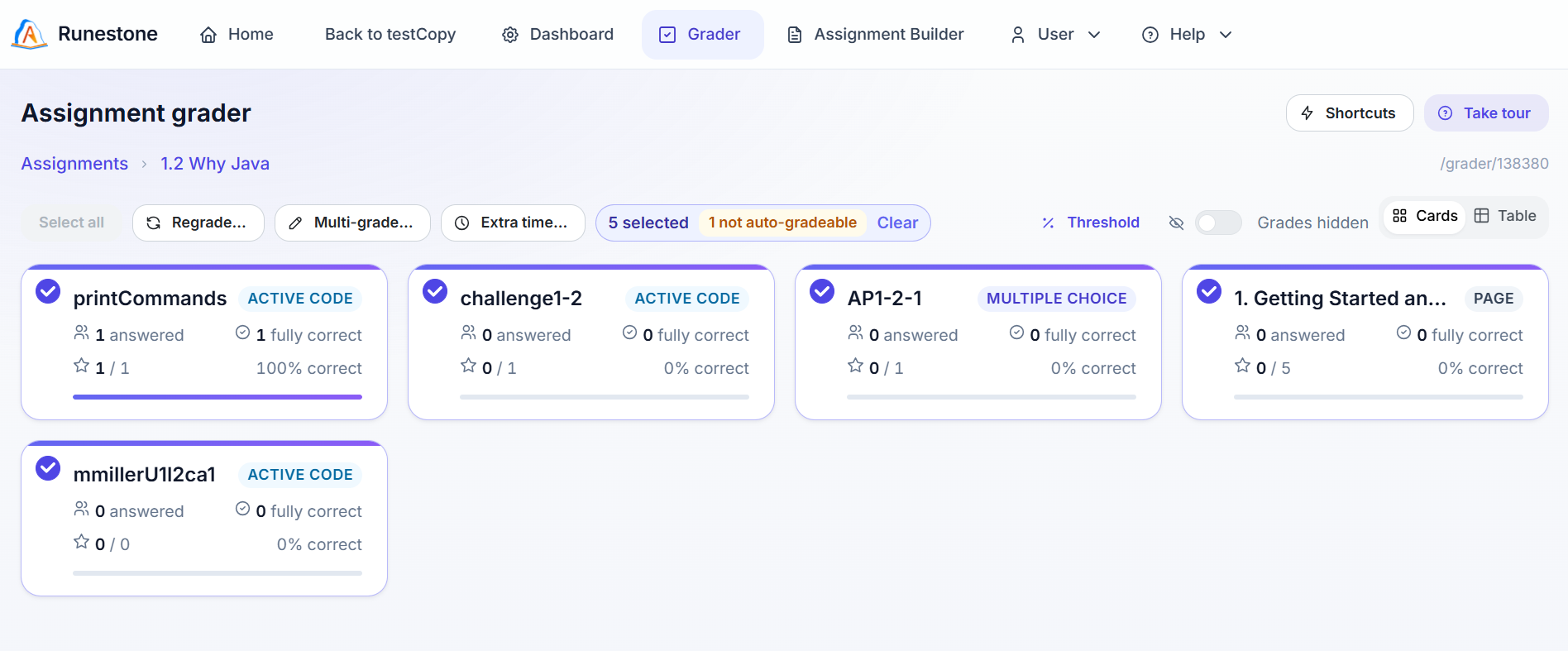
Click on an assignment to view the problems in the assignment in Cards or Table view. In this view, there are options to select all of the problems and Regrade all and to release the grades to the students.
From here, you can also select an exercise to view student solutions and to manually grade them. In the manual grading view, you can see the students’ solutions, override autograded scores, and provide comments.
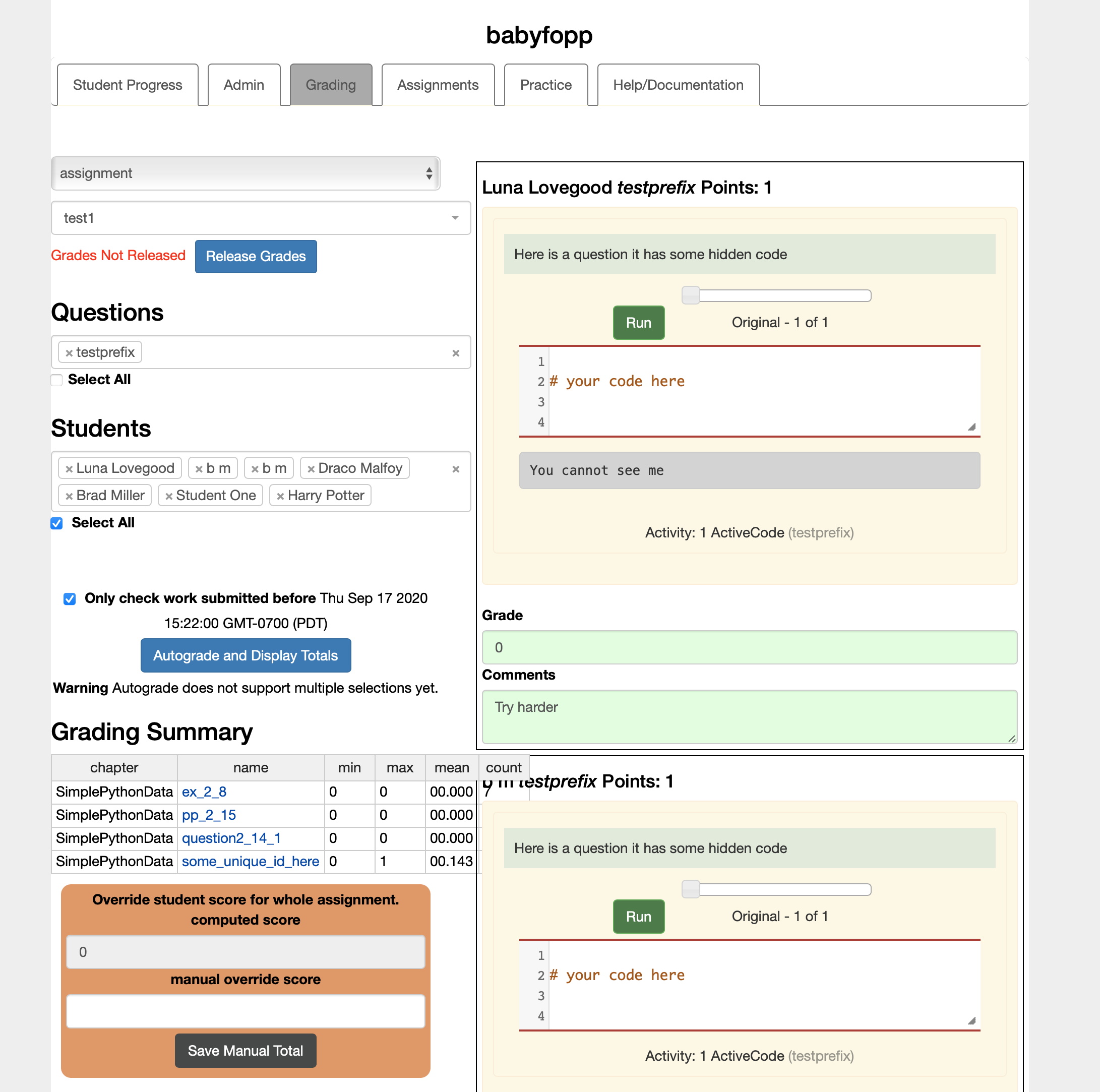
In active code exercises, this view will show the last version of code that the student ran prior to the assignment deadline. Click run to execute it. Drag the little scrubber across the timeline next to the Run button to see other versions of the code that the student ran.
You can assign or change the grades next to "Points" in the rightmost panel, and, optionally, leave a comment. If you erase the "autograded" comment, it will no longer be autograded on regrades. Once you have manually graded the assignment or released grades, they will no longer be autograded. You will need to run the grader again for late work.
When you are satisfied that the grades have been calculated correctly, click on the toggle "Grades Hidden" button at the top right of the assignment view showing all the exercises in an assignment in the Grader, to switch it to Released. This makes them visible to students.
Students will see their grades and comments when they view their assignment. They will see your comments above each exercise in the assignment. They can also choose Progress from the user icon menu to see a summary of their grades on all assignments.
If you prefer to start grading by student and drill down instead of starting with the assignments, start with the Gradebook interface and click on a student’s score in an assignment to see a breakdown, and click on a specific problem to view the student’s solution in the Grader.
You have attempted of activities on this page.