
Section 4.6 Course Settings
There are some settings that you can control for your course that effect how the interactive components work. From the user icon, choose the "Instructor Dashboard", then open the "Course Administration" section and click on "Course Settings".
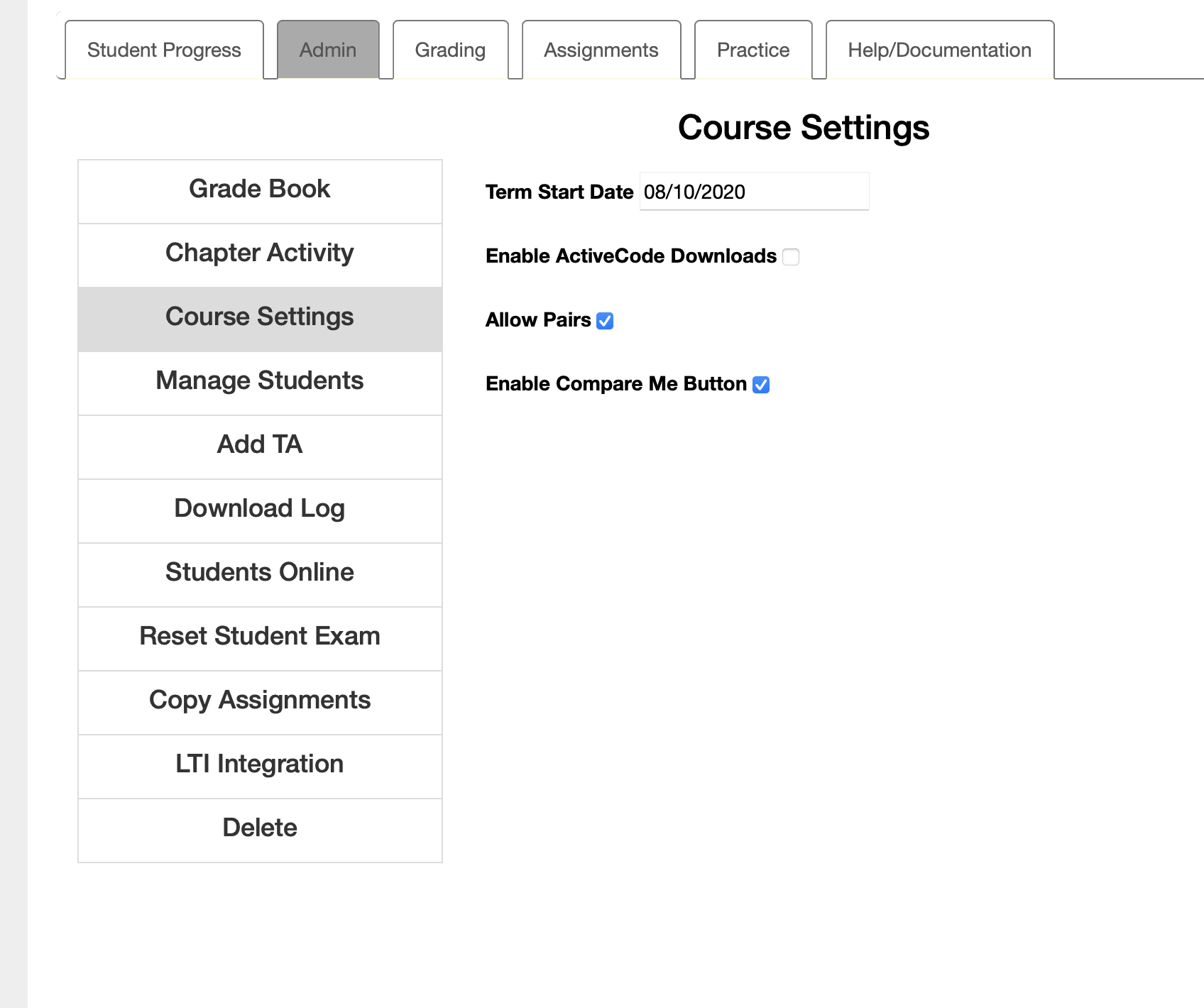
- Term Start Date
-
You can change your course start date. This is important if you copy assignments from a past term. Runestone will try to make the assignment due the same number of days from the start of the term. We also do analysis of student performance based on the week of the course, so it helps our analysis if this date is accurate.
- Enable ActiveCode Downloads
-
If this box is checked then each activecode will have a download button that will allow your students to download a text file with the appropriate extension containing the code in the editor.
- Allow Pairs
-
This enables a simple pair programming feature that allows a student to type in the username of a partner. When the student clicks the Save and Run button the code will be saved for both students with a comment added that indicates they were working with a partner and who that partner was.
- Enable Compare Me Button
-
Questions such as multiple choice may let students see how they did compared to other students in the class. This button pops up a dialog that shows the percent of students that answered a question for each option. For a fill in the blank question it shows the top 10 answers.
- Show Points in Gradebook
-
Display points instead of percentages (default is percent)
- Enable Async LLM Modes for Peer Instruction
-
Allow per-question LLM chat mode selection in asynchronous peer instruction activities. Requires an LLM API key.
- Use PreTeXt based student pages
-
When enabled, student pages can use book-specific template overrides.
- Group Size for Peer Instruction
-
Set the default group size for peer instruction activities
- Share This Course’s Assignments
-
Let instructors in other courses find and import your assignments. This covers every assignment in the course, exams included, so leave it off if any of them should stay private. Importing never copies student work or grades, and the instructor who imports gets their own hidden copy. You can write a note to instructors who import your assignments.
You have attempted of activities on this page.