
1.1. Introduction to Algorithms, Programming, and Compilers
What do Android phones, Minecraft, and Netflix have in common? They’re all coded in Java! Many of the apps you use in an Android phone or tablet are written in Java. If you’ve used App Inventor before, those apps are translated to Java before they are run on a phone or tablet. Netflix uses Java for some of its software too. Java is a programming language that is used worldwide to create software that we all use.
The following video introduces this first lesson in CSAwesome.
1.1.1. Algorithms
Algorithms define step-by-step processes in order to complete a task or solve a problem. Algorithms are used in many areas of life, not just in computer science. For example, a recipe is an algorithm for cooking a meal. A set of directions to a friend’s house is an algorithm for getting there. In computer science, algorithms are used to solve problems and to create software. For example, an algorithm can be used to sort a list of numbers, to search for a word in a document, or to code a game.
Algorithms can be used to plan and design code by writing the steps down in English or another language or in a diagram or in pseudocode which is writing simplified code on paper. It’s important to plan the algorithm step by step where each step can be implemented by a line of code. Sequencing defines an order for when steps in a process are completed. Steps in a process are completed one at a time.
 Check Your Understanding
Put the following algorithm steps for brushing your teeth in order. Click on Check Me to see if you are right.
1-1-3: Write an algorithm for someone (maybe a robot) to make a peanut butter and jelly sandwich. Be sure to include at least 5 precise steps in order. Have someone (maybe your instructor) act it out. Were your instructions precise enough?
1.1.2. First Java Program
Every program in Java is written as a class. Java is an object-oriented language, and classes and objects created from classes are the basic building blocks in object-oriented programming. We’ll learn more about classes and objects later in this unit.
Inside the class, there can be a main method that starts the program. A method is a block of code that performs a specific task. The main method is the entry point for the program. When you ask the Java run-time to run a class, it will always start execution in the main method. In other programming languages, methods are called functions or procedures. Here is the template for a simple Java program with a main method:
public class MyClass
{
    public static void main(String[] args)
    {
        // Put your code here!
    }
}
Note
In Java every open curly brace { must have a matched close curly brace }. These are used to start and end class definitions and method definitions.
 Coding Exercise: Click on the run button below to have the computer execute the
 main method in the following class. Then, change the code to print your name. Be sure to keep the starting " and ending ". Click on the run button to run the modified code. If you revisit this page later and login, click on Load History and move the bar above it to see your previous code changes.
Run this code to see the output below it. Then change the code to print your name, for example “Hi Pat!”, and run again.
1.1.3. Compiling and Running Java Programs
Code can be written in any text editor, including the small text editor built into the Active Code exercises in this e-book. However, an Integrated Development Environment (IDE) is often used to write programs because it provides tools for a programmer to write, compile, and run code. For this course, you can use the e-book Active Code exercises or the Scratch button above as your IDE to run your code. Or you can try other IDEs mentioned in the last unit. In other IDEs, you must name the file the same name as the class name with “.java” as the extension. All code (programs) in Java must be defined inside a class in a source file, and the name of the class must match the file name.
Computers don’t actually speak Java so we have to compile (translate) Java source files that we write into class files which is code that a computer can understand and run. A compiler checks your code for errors and translates your code to executable code that can be run. Errors detectable by the compiler need to be fixed before the program can be run. In this e-book, the Java code is actually being sent to a Java server to compile and run, and the errors and output are sent back to show on the same page.
1.1.4. Java Keywords
Keywords are reserved words that have special meaning in Java. Keywords such as public, class, and void must be in lowercase, but class names such as System and String are capitalized.
Drag or click on the blocks you need to move them from the top section into the yellow area to create the first line for the main method. There are extra blocks that you don’t need.
Drag or click on the blocks you need to move them from the top section into the yellow area to create the first line for the main method. There are extra blocks that you don’t need.
Drag or click on the blocks you need to move them from the top section into the yellow area to create the first line for the main method. There are extra blocks that you don’t need.
Lines in a Java program that express a complete action such as printing output must end with a semicolon (;). Such a line is called a statement. You can think of the semicolon (;) in Java like a period (.) in English. The same way you use a period to end a sentence in English, you use a semicolon to end a statement in Java. You will not be penalized on the exam if you forget a needed semicolon, but the Java compiler is not so lenient; your program won’t compile without it. Note also that not every line ends with a semicolon; if the line starts a construct like an if statement, there is no semicolon before the opening { nor one after the closing }.
Drag or click on the blocks you need to move them from the top section into the yellow area to create a Java statement that will print “Hi!”. There are extra blocks that you don’t need.
Drag or click on the blocks you need to move them from the top section into the yellow area to create a Java statement that will print “Bye!”. There are extra blocks that you don’t need.
1.1.5. Syntax Errors and Debugging
Syntax errors are reported to you by the compiler if your Java code is not correctly written. Examples of syntax errors are a semicolon ; missing or if the code has a open curly brace { or open quote ", but no close curly brace } or close quote ". Informally, a syntax error is called a bug, and the process of removing errors is called debugging. An early computer science pioneer Grace Hopper documented a real bug, a moth that flew into a computer in 1947!
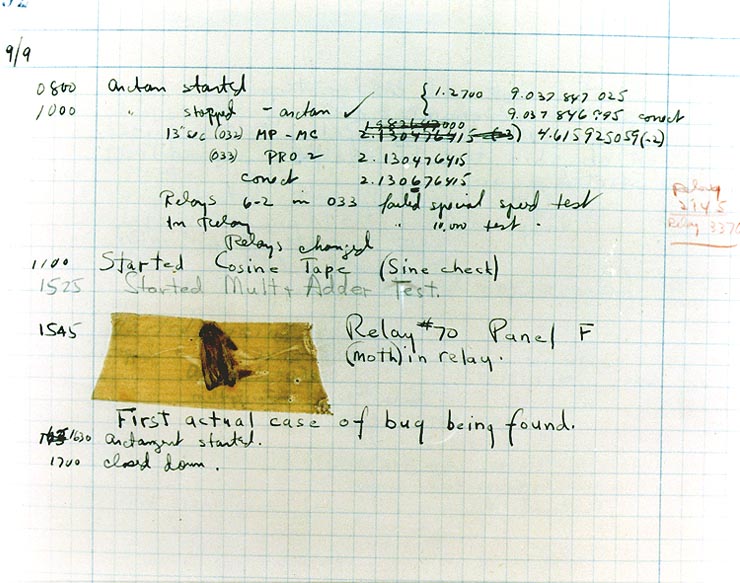
Figure 2: Grace Hopper’s log showing a real bug, 1947.
The compiler tries to run your code, but if your code has syntax errors, you will see error messages displayed below the code. Compiler error messages will tell the line number that the compiler found the error and the type of error. The error messages are not always easy to understand and sometimes the actual error is before the line that the compiler says is the problem.
Watch the following video to see that all coders get bugs. Debugging is a normal part of coding. It can be frustrating at times, but you will get better at it with practice! Sometimes another pair of eyes really helps, so ask a friend if you get stuck or try explaining your code line by line to someone or even a rubber duck. Rubber duck debugging is a lot of fun!
Let’s practice debugging some code!
Check Your Understanding: Mixed up programs
The following has all the correct code to print out “Hi my friend!” when the code is run, but the code is mixed up. Drag the blocks from left to right and put them in the correct order. Click on the “Check Me” button to check your solution. You will be told if any of the blocks are in the wrong order or if you need to remove one or more blocks. After three incorrect attempts you will be able to use the Help Me button to make the problem easier.
The following has all the correct code to print out “Hi there!” when the code is run, but the code is mixed up and contains some extra blocks with errors. Drag the needed blocks from left to right and put them in the correct order. Click on the “Check Me” button to check your solution.
1.1.6. Reading Error Messages
In the exercise below, you should click on the run button to compile and run the code. Unfortunately you will find there is a syntax error in the code that you need to fix. Before you try to fix it, look for the error message below the code. This is called a compile time error because it is an error detected by the compiler.
It will be a lot easier to find the problem, and other problems like it, if you understand how to read the error message. So let’s take a closer look. It will look something like this:
FirstClass.java:5: error: unclosed string literal
       System.out.println("Hi there!);
                          ^
1 error
The first line starts with the name of the file that was being compiled.
Because you submitted your code via this web page you didn’t actually name
the file but it was named for you to match the name of your class. Then
there’s a colon (:) followed by a number. That number tells you the line
number in the file where the compiler detected the error, in this case
line 5.
Error messages aren’t always 100% accurate about where the error actually is; sometimes you actually need to change something a bit earlier in the program and sometimes a bit later. But the line number is the best place to start looking.
After the line number and another colon, you will find the actual error message. These can be kind of cryptic but you should still read it. As you learn more Java vocabulary they will become more meaningful but they almost always contain some useful clues. For instance take this error message: “unclosed string literal”. You may not know what a string literal is (yet) but “unclosed” suggests something was opened and then not closed. Keep that thought in mind.
Now look at the next two lines. The very next line is just the line of code
from your program. But below that is a very important line containing a
single caret (^) positioned to point at exactly where in the line the
Java compiler thinks the problem is. In this case it’s pointing at the
quotation mark (”) before “Hi”. So it’s complaining about something being
unclosed and it’s pointing us at a quotation mark. Usually quotation marks
come in pairs called the open quote and the close quote, right? And if you
look at the line of code you’ll see that there’s no closing quotation mark.
Could that be the problem? Try adding a quotation mark and see if that fixes
it!
It is worth getting in the habit of really reading error messages. The people who wrote the Java compiler put in lot of work to try to make the error messages useful. If you read them, you’ll soon learn to recognize common mistakes and will get much quicker at finding your syntax errors.
Coding Exercise: Compile Time Error 1
Fix the code below.
Coding Exercise: Compile Time Error 2
Click on the run button below to try and run the following code. Look for an error message after the code. This time the error message will probably point even more exactly at the problem than in the previous exercise. Try to fix the code and run it again.
Fix the code below.
Coding Exercise: Compile Time Error 3
Click on the run button below to try and run the following code. What is wrong this time? The first error message will probably point you directly at the problem. But after you fix that you’ll probably get a new error! That happens sometimes because the compiler can’t even detect the second error until the first one is fixed.
This is another reason it’s important to read error messages. It’s very tempting when we see that there’s an error to jump immediately to trying to fix it. Arg, an error! Get rid of it! But if we don’t slow down and read the message in a case like this, we might not notice that we’ve actually fixed the first error. If we don’t notice that we fixed it, we might undo our change and unfix it!
So read the error messages—they’re there to help you. With that in mind, see if you can fix both errors in this code. A hint for the second error: capitalization matters.
Fix the code below.
Did you remember that System is capitalized in System.out.println? Did you find the missing semicolon?
1.1.7. Run-time Errors
Some errors cannot be detected by the compiler. These are called run-time errors. These errors occur when the program is running, after the code is compiled. They can be caused by a variety of things, such as dividing by zero or trying to read from a file that doesn’t exist or a logic error in the code.
An exception is a type of run-time error that occurs as a result of an unexpected error that was not detected by the compiler. It interrupts the normal flow of the program’s execution. Java will sometimes report an exception with a message that tells you what went wrong. For example, if you try to divide by zero, Java will throw (report) an ArithmeticException while running. Try this out in the code below.
The following code has a run-time error. When you click on run, the compiler will not catch it since it is not a syntax error. The program will run and try to compute 3 divided by 0 which cannot be computed. This will cause a run-time error, and the program will report an ArithmeticException. Try it out!
Run-time errors can be difficult to find because they don’t always cause the program to crash. Sometimes they just cause the program to behave in unexpected ways because of an error in the logic. A logic error is a mistake in the algorithm or program that causes it to behave incorrectly or unexpectedly causing a run-time error. For example, a programmer might have made a math mistake so the wrong value is calculated. Logic errors can be detected by testing the program with specific data to see if it produces the expected outcome. We’ll see an example of this after learning about expressions in the next lessons.
1.1.9.  Debugging Challenge
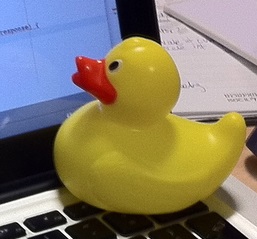
In this course, you are encouraged to work together in pairs to complete the coding challenges. Pair programming is a successful software development technique where two programmers work together at one computer. One, the driver, types in code while the other, the navigator, gives ideas and feedback. The two coders switch roles frequently. Another option is buddy programming, where two or three coders work on their own computers but help each other as needed. If you’re working alone, you may want to explain the code to a rubber duck or another toy using Rubber duck debugging.
Working in pairs, debug the following code. Can you find all the bugs and get the code to run?
Fix the code below.
1.1.10. Summary
(AP 1.1.A.1) Algorithms define step-by-step processes to follow when completing a task or solving a problem. These algorithms can be represented using written language or diagrams.
(AP 1.1.A.2) Sequencing defines an order for when steps in a process are completed. Steps in a process are completed one at a time.
(AP 1.1.B.1) An Integrated Development Environment (IDE) is often used to write programs because it provides tools for a programmer to write, compile, and run code.
A basic Java program looks like the following:
public class MyClass
{
    public static void main(String[] args)
    {
        System.out.println("Hi there!");
    }
}
A Java program starts with public class NameOfClass { }. If you are using your own files for your code, each class should be in a separate file that matches the class name inside it, for example NameOfClass.java.
Most Java classes have a main method that will be run automatically. It looks like this: public static void main(String[] args) { }.
The System.out.println() method displays information given inside the parentheses on the computer monitor.
Java statements end in
;(semicolon).{ }are used to enclose blocks of code.//and/* */are used for comments.(AP 1.1.B.2) A compiler translates Java code into a class file that can be run on your computer and checks code for some errors. Errors detectable by the compiler need to be fixed before the program can be run.
(AP 1.1.C.1) A syntax error is a mistake in the program where the rules of the programming language are not followed. These errors are detected by the compiler. Some things to check for are
;at end of lines containing complete statements and matching{ },(), and"".(AP 1.1.C.2) A logic error is a mistake in the algorithm or program that causes it to behave incorrectly or unexpectedly. These errors are detected by testing the program with specific data to see if it produces the expected outcome.
(AP 1.1.C.3) A run-time error is a mistake in the program that occurs during the execution of a program. Run-time errors typically cause the program to terminate abnormally.
(AP 1.1.C.4) An exception is a type of run-time error that occurs as a result of an unexpected error that was not detected by the compiler. It interrupts the normal flow of the program’s execution.
1.1.11. AP Practice
1-1-18: Consider the following code segment.
System.out.println("Roses are red, ")      // Line 1;
System.out.println("Violets are blue, ")  // Line 2;
System.out.println("Unexpected '}' on line 32. ")  // Line 3;
The code segment is intended to produce the following output but may not work as intended.
Roses are red,
Violets are blue,
Unexpected '}' on line 32.
Which change, if any, can be made so that the code segment produces the intended output?
Replacing System with system on all lines.
The class name System is always capitalized.
Replacing println with print on lines 1 and 2.
println is correct to print out with a newline in between.
Removing the single quotes in line 3.
The single quotes are fine in this line.
Putting the semicolon after the ) on each line.
Correct! The semicolon should go after each statement but not in the comment.
1.1.8. Comments
In Java and many text-based coding languages,
//is used to mark the beginning of a comment. For multi-line comments, use/*to start the comment and*/to end the comment. The compiler will skip over comments. However, it is a good idea to use comments to make notes to yourself and other programmers working with you. Here are some examples of good commenting: